Setup Guide
How to Setup IPTV on all Devices
Step 1 : Get the Downloader app on Firestick
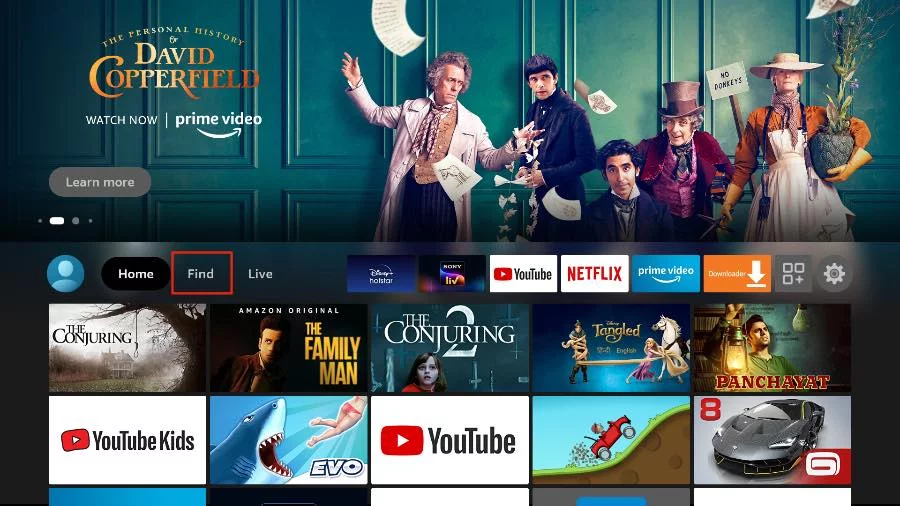
1. Open the FireStick home screen.
2. Go to the Find menu page.
3. Select Search at the top.
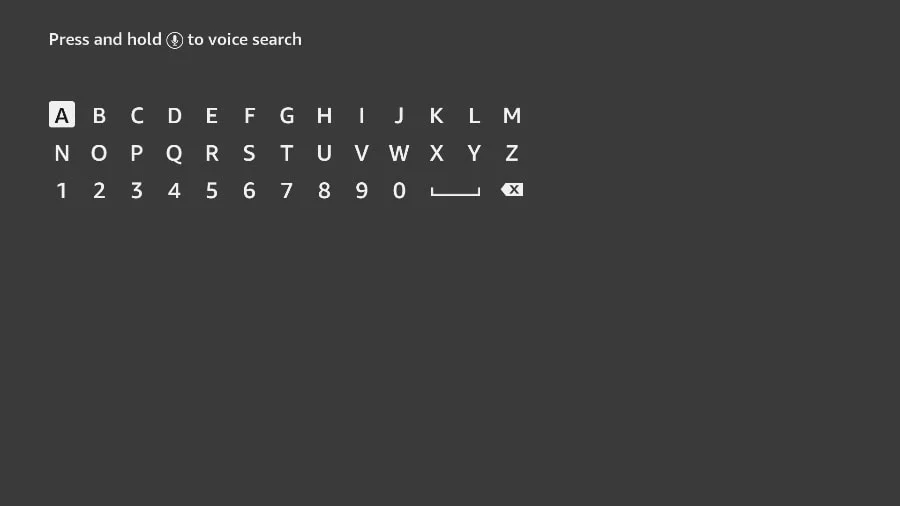
4. This will open a virtual keyboard on your FireStick.
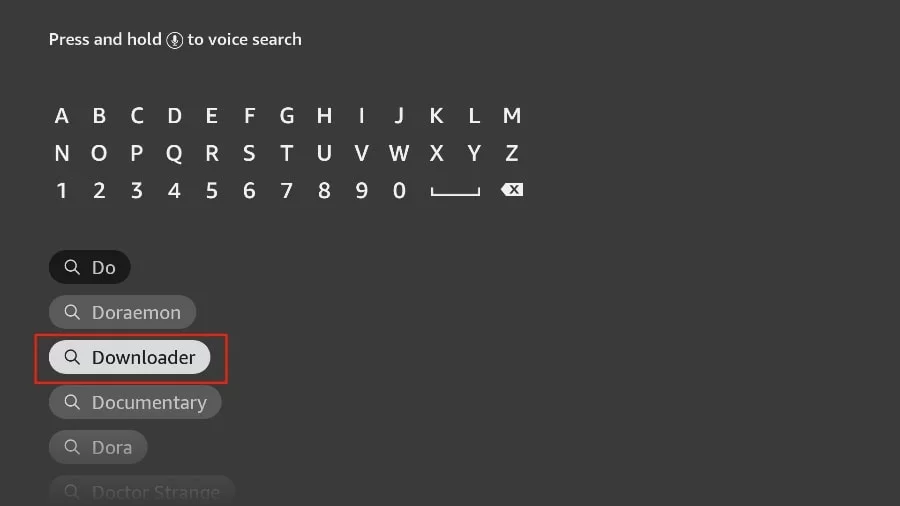
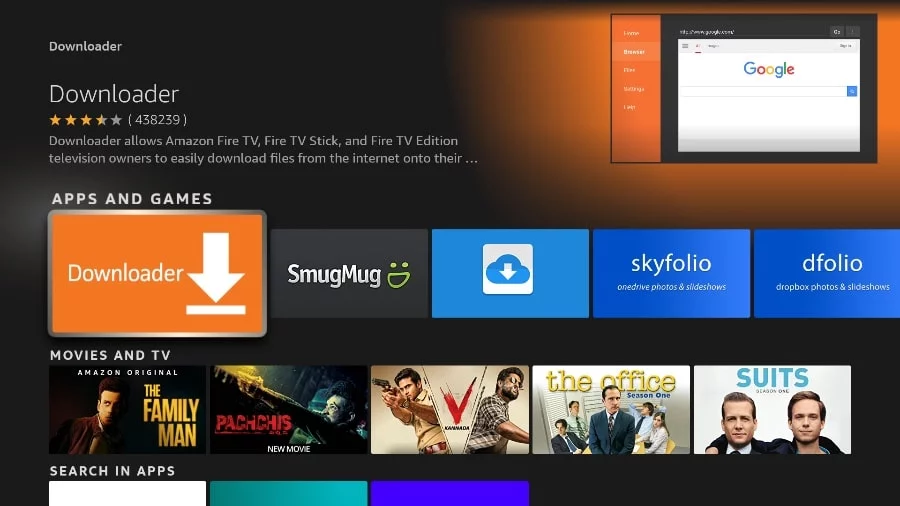
5. Start typing Downloader. Select Downloader when it appears among the suggestions below the keyboard.
6. Select the Downloader application, recognizable by its orange background. Then, in the next screen, select the Get or Download button.
Step 2 : Change Firestick Settings
In some version of FireStick
1. Press home button on your FireStick remote.
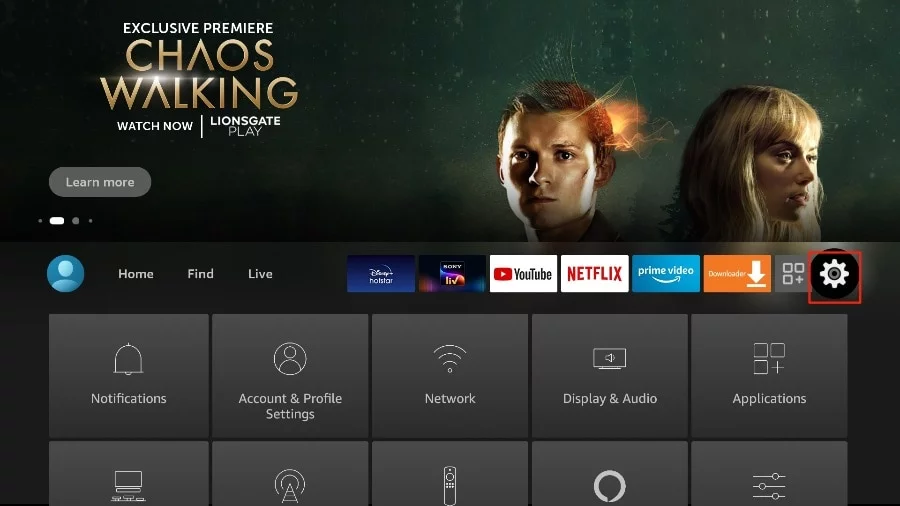
2. Go to the gear settings page on the far right.
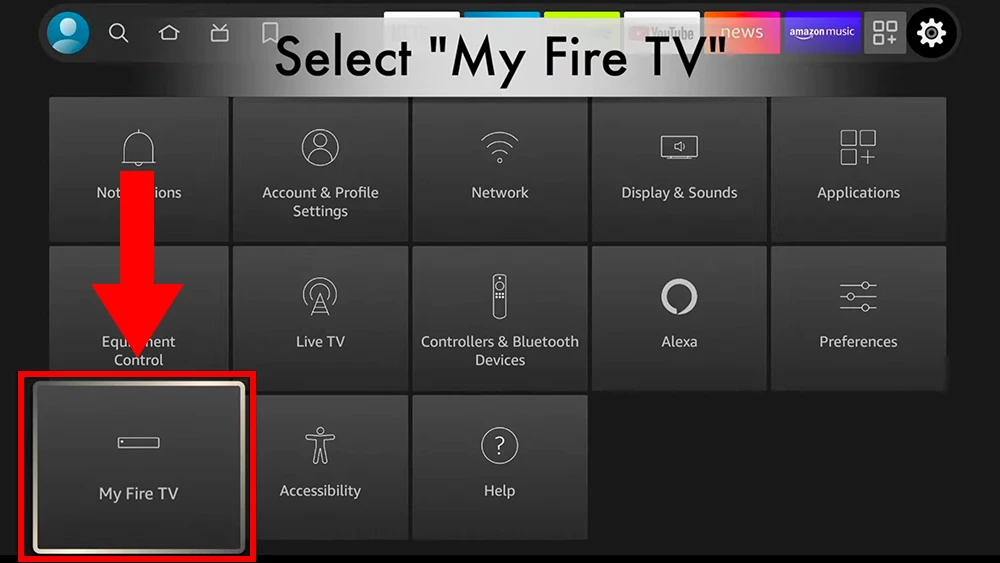
3. Scroll down and select “My Fire TV“.
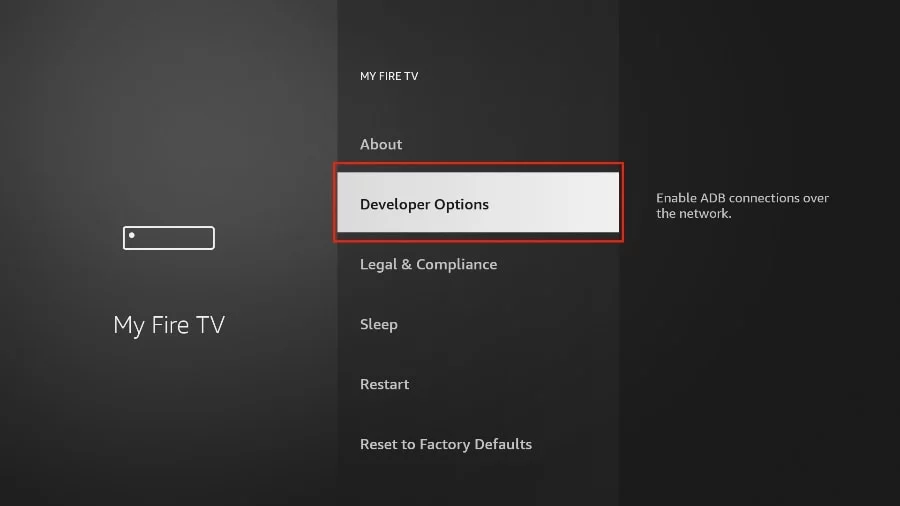
4. Choose “Developer Options“.
5. Find “Apps from Unknown Sources“. By default, it is disabled. Select it to turn it ON.
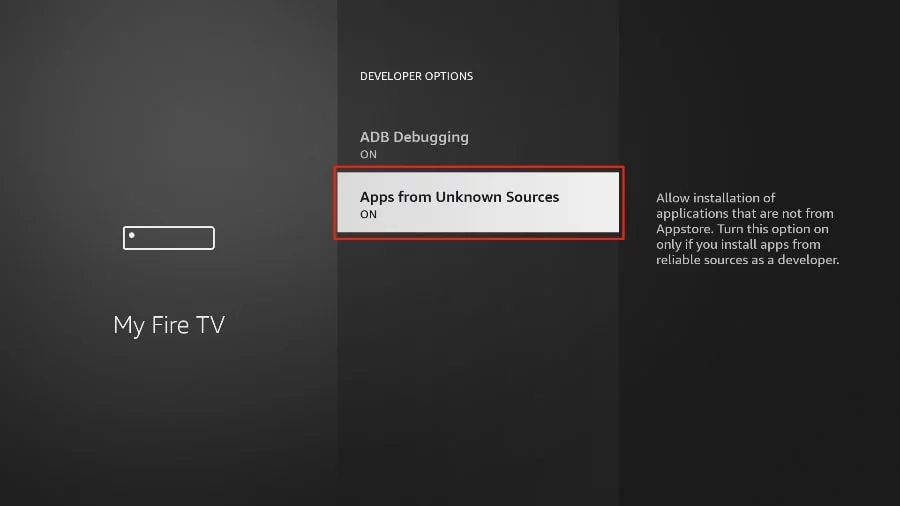
You can now sideload any application installer file (APK) to the FireStick without any issues.
In Other version of FireStick
1. Press home button on your FireStick remote.
2. Go to the gear settings page on the far right.
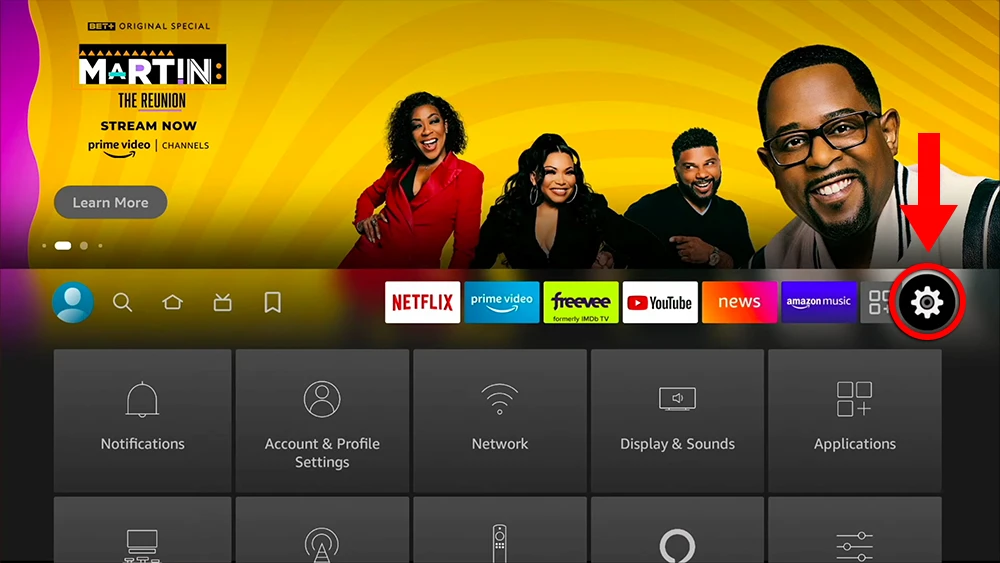
3. Scroll down and select “My Fire TV“.

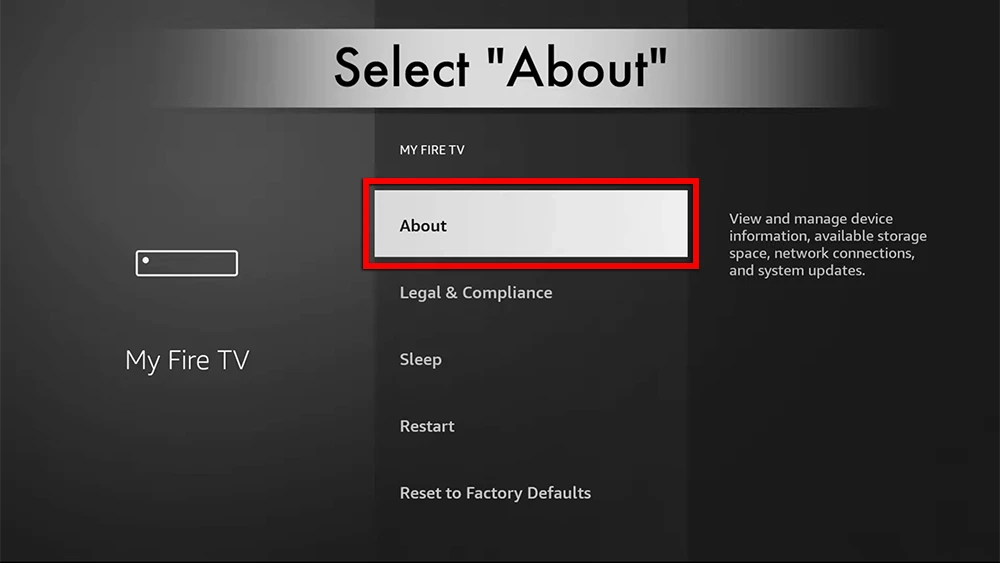
4. Select “About“.
5. Click on “Fire TV Stick” 7 times.
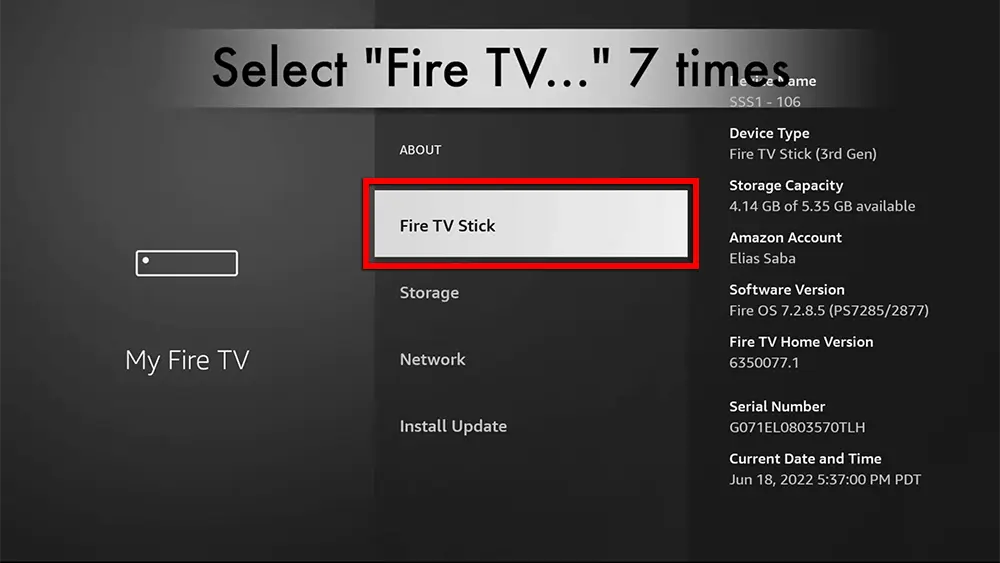
6. Choose “Developer Options“.
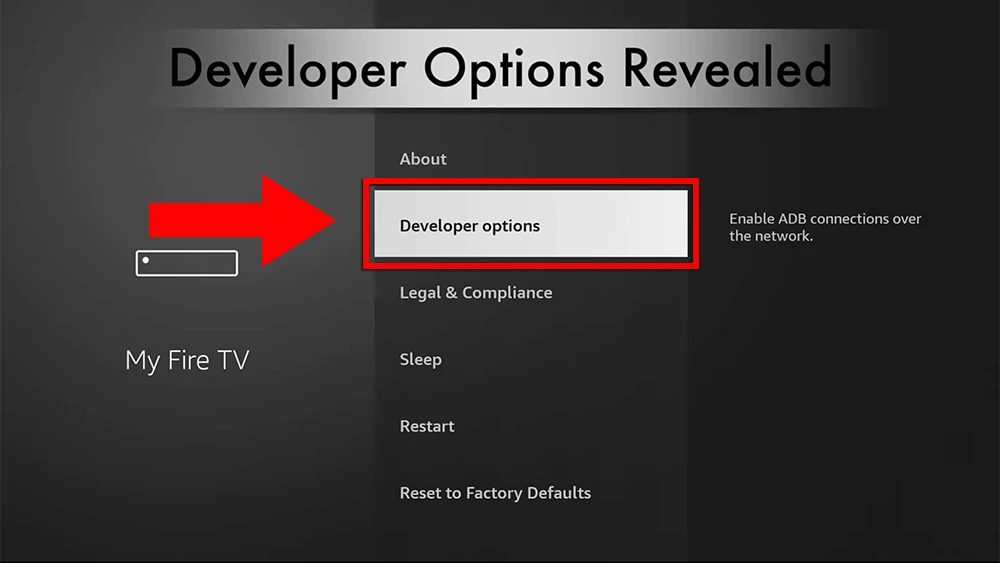
7. Select “ADB debugging” to turn it ON.
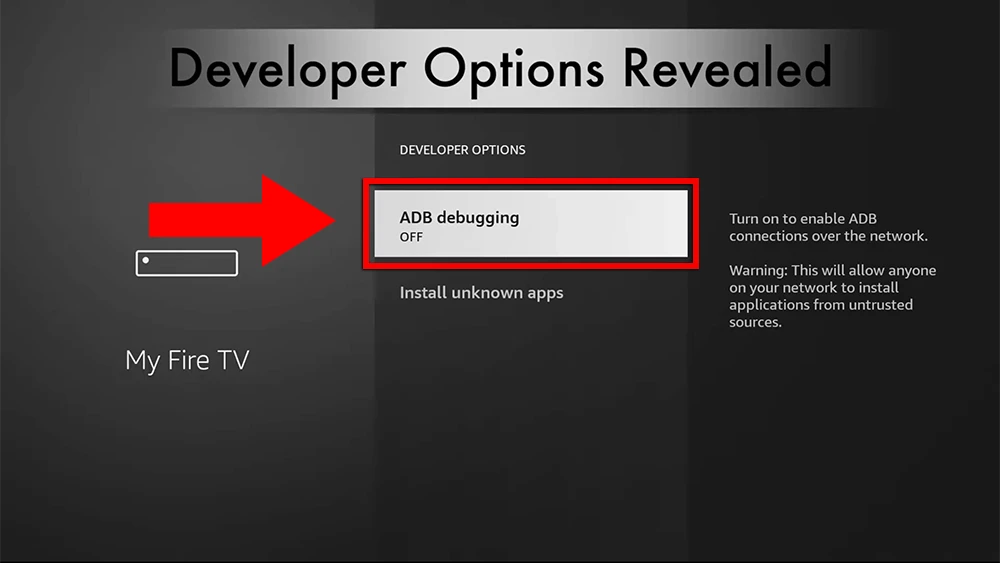
You can now sideload any application installer file (APK) to the FireStick without any issues.
Step 3 : Use the Downloader app to install an IPTV Player on Firestick

8K Tivimate [FREE]
8KTiviMate is a clone of the legit Tivimate but free and also powerful IPTV player. It offers live TV channels, VOD, and DVR recording. It's known for its user-friendly interface and customization options. Downloader Code : 1969685

IBO Player [Paid]
The Ibo Pro Player is a streamlined IPTV app for streaming live TV, movies, and on-demand. It offers a 7-day free trial period before asking for a one-time payment. You can login using their website or you can send use the mac address and key on WhatsApp or email.
Downloader Code : 511693

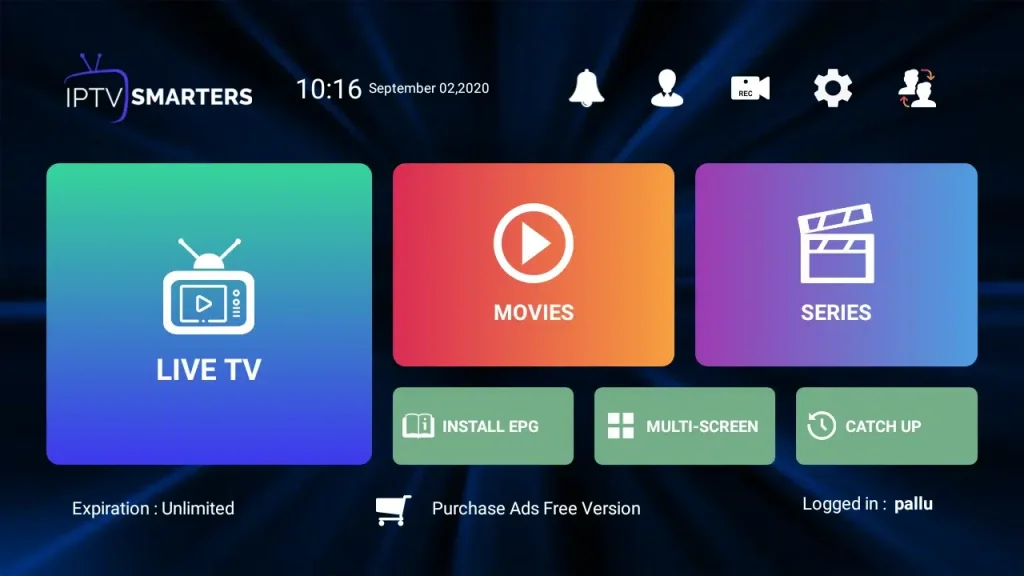
IPTV SMARTERS [Free]
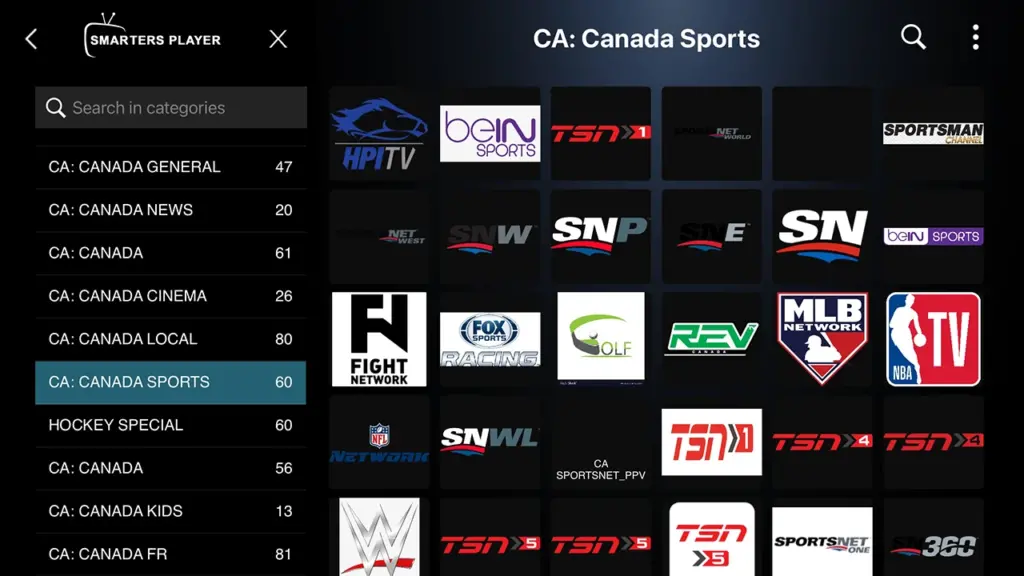
PTV Smarters Pro is a free IPTV app to watch live TV, Movies & Series. Login via Xtream Codes and make sure using the right URL for the app :
http://cf.hi-cdn.me/ or https://iptvlegacy.com/
Downloader Code : 78522

4k Player [Free]
4k player just like Ibo but is a free IPTV app to watch live TV, Movies & Series. We do setup it for you so you need to send us the "MAC ID" via WhatsApp or email.
Downloader Code : 9285892
Ibo Player pro [Paid]
Ibo Player Pro is a versatile media player for Android devices, smart TVs, and more. "this is not a pro version of ibo player both are good".You can login using their website or you can send use the mac address and key on WhatsApp or email.
Downloader Code : 834339

8k Player Vip [FREE]
8k player vip just like Ibo but is a free IPTV app to watch live TV, Movies & Series. to login press continue then login using your username and password with it.
Downloader Code : 439873

Strong 4k
Strong 4k is a private player IPTV app to watch live TV, Movies & Series. requires your username and password only from the email we send.
Downloader Code : 140991
TiviMate [Paid]
TiviMate is a powerful IPTV player. It offers live TV channels, VOD, and DVR recording. It's known for its user-friendly interface and customization options.
Downloader Code : 272483
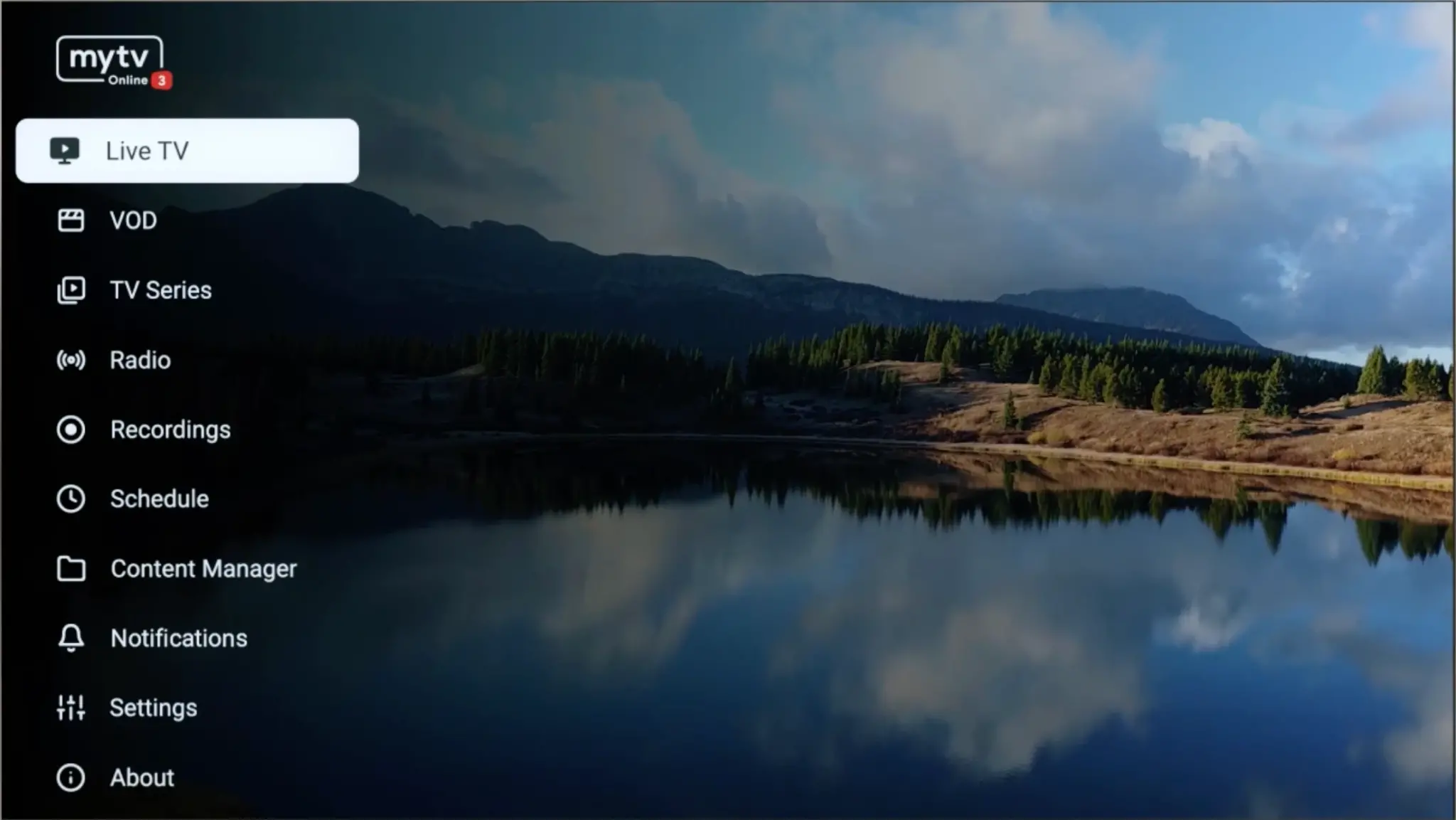
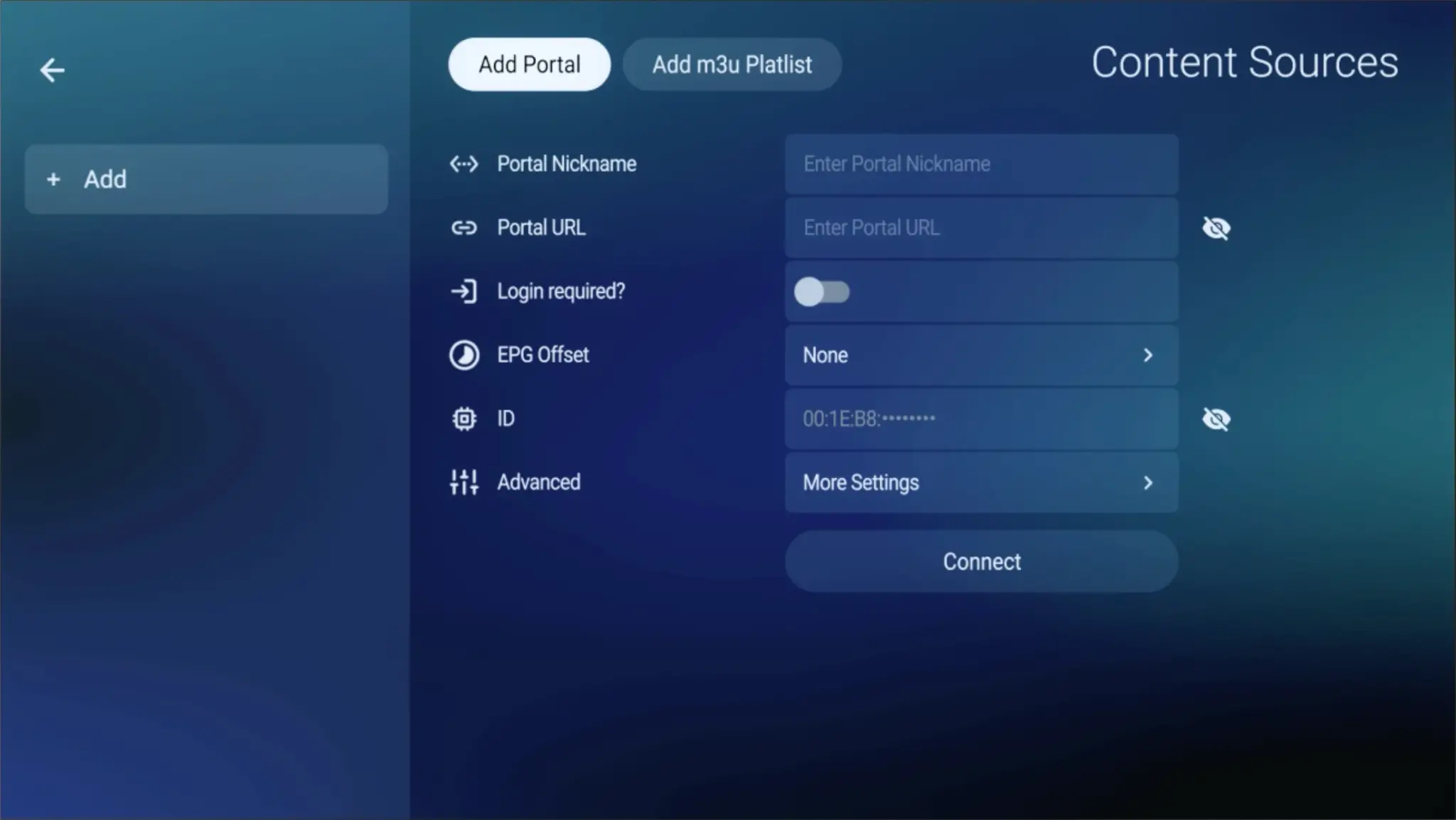
To run the IPTV service on your Formuler Box, simply use MYTV Online 3 App or MYTV Online 2 App. Follow the steps below for easy setup.
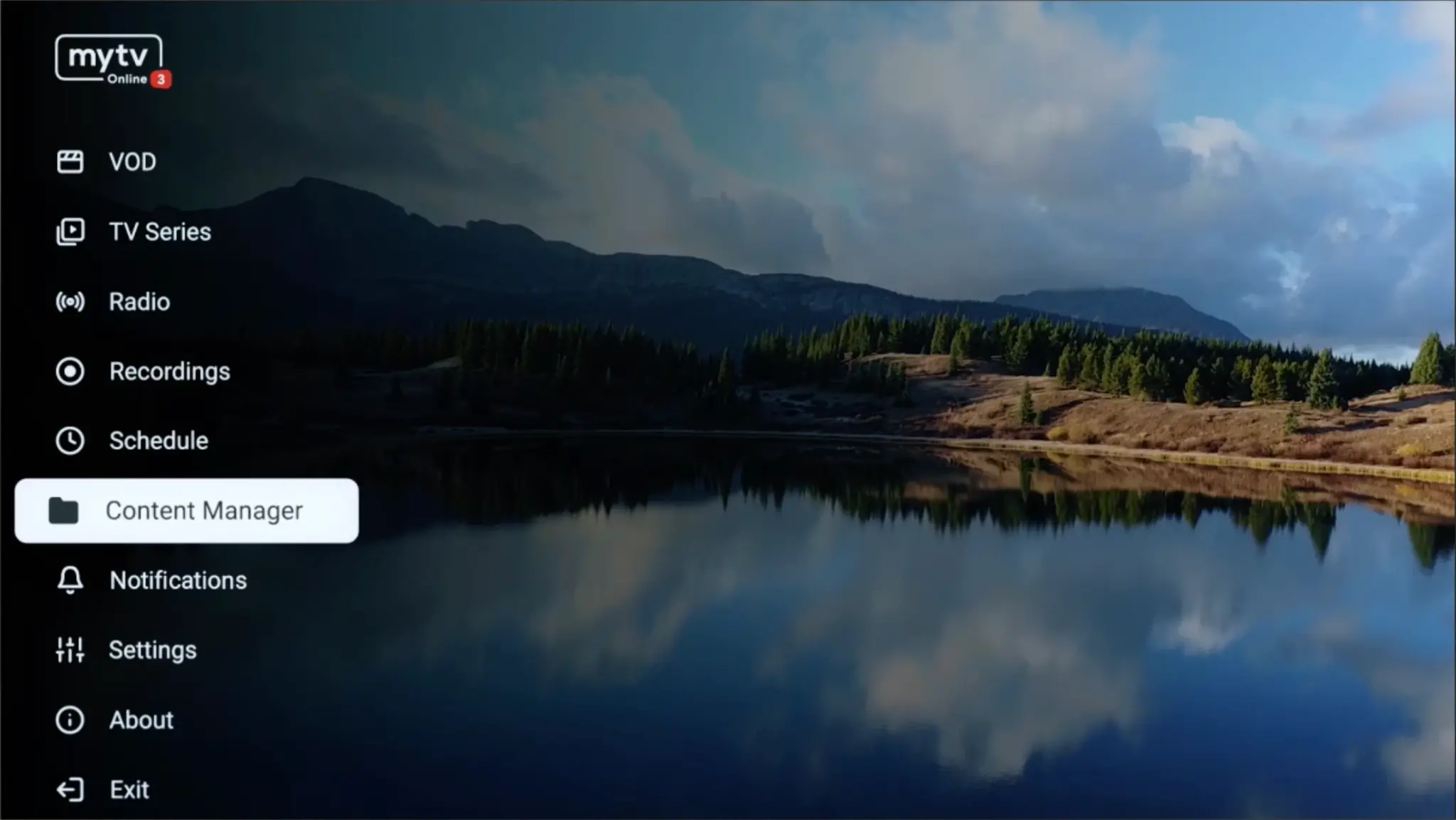
MYTV Online 3
1. Go to the Apps menu page from the FireStick Home page.

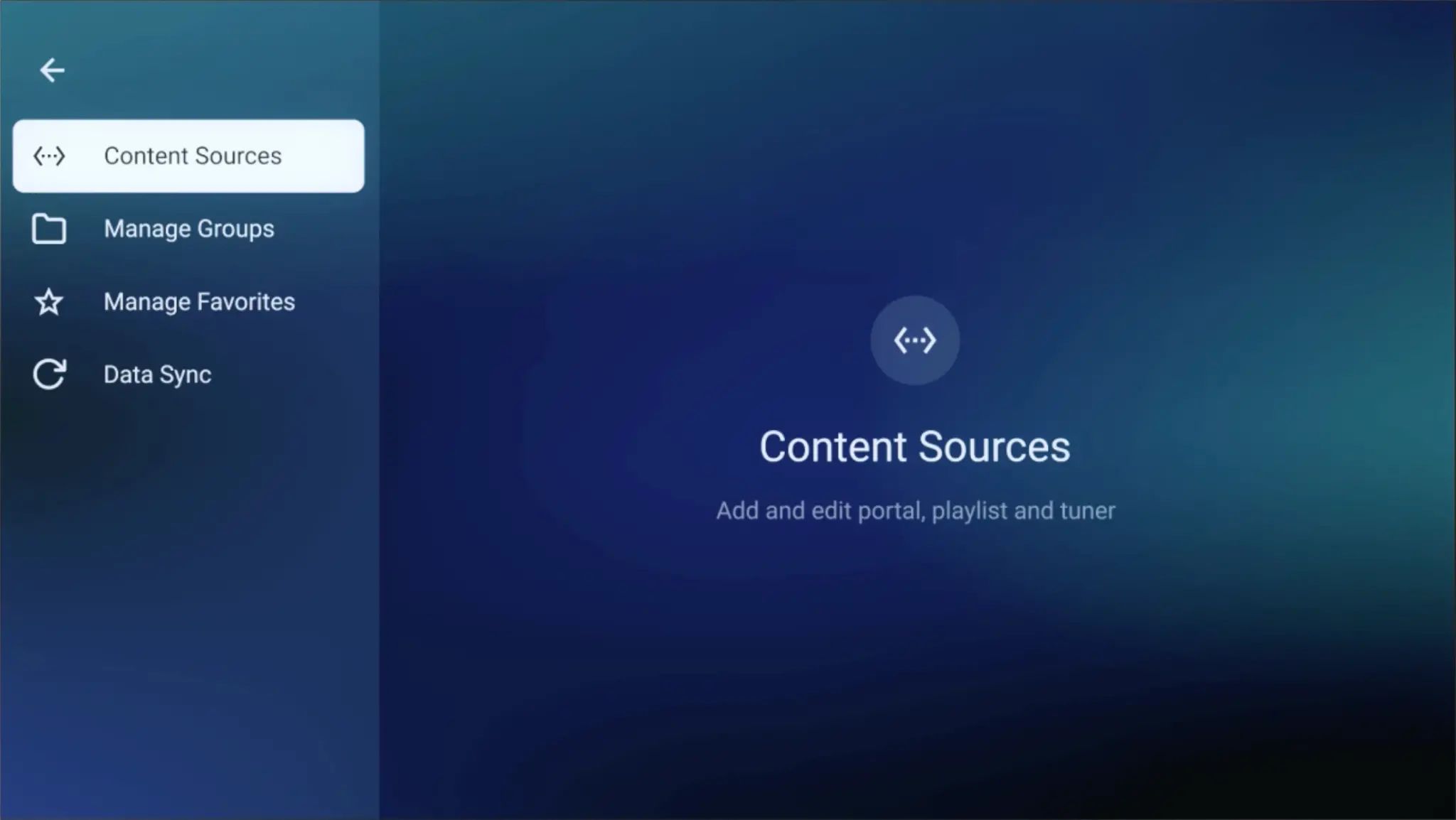
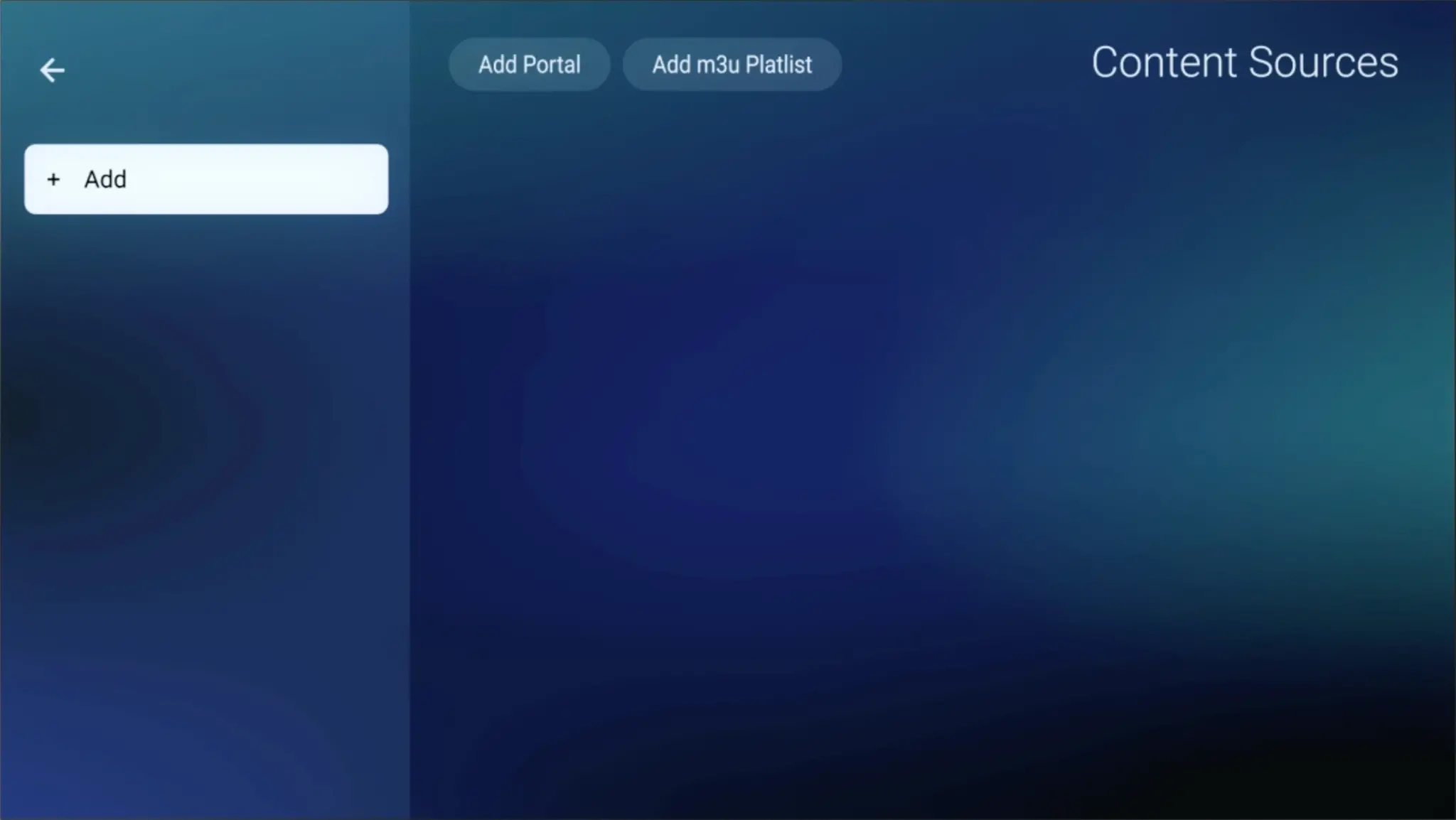
2. Go to Content Manager Then Go to Content sources > +Add

3. Select “Add Portal”(Highly recommended) to set device as a MAC base device like MAG boxes.
**Here you have an ID of your box, Click on the eye icon to see the full MAC address (or you can find it at the bottom of your box. Look for a label that says “MAC” or “MAC Address). After payment, submit the Form with your device’s MAC address If you didn’t then you can contact as via WhatsApp on +1111111111111 his step is essential for activating your Service subscription.

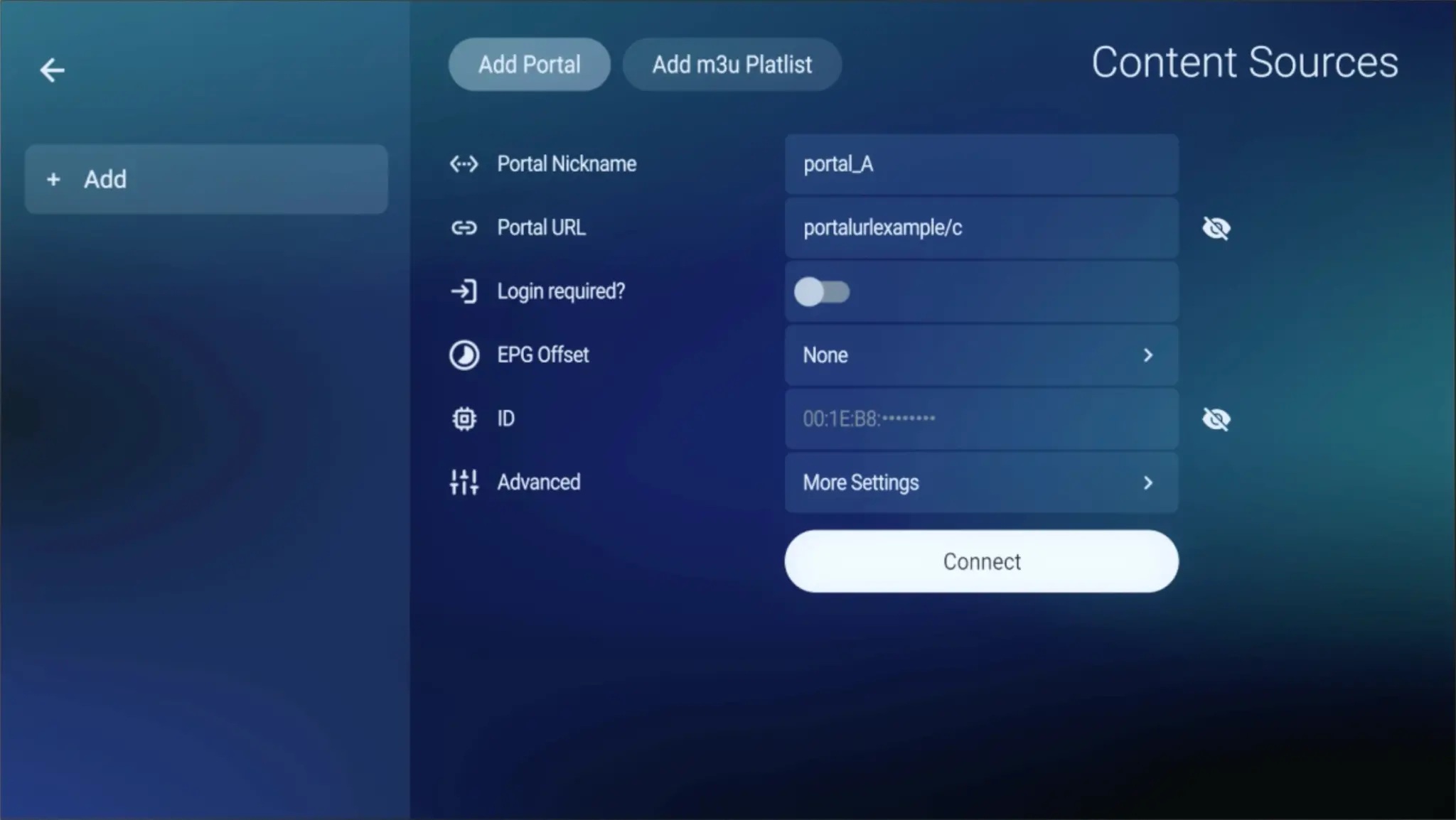
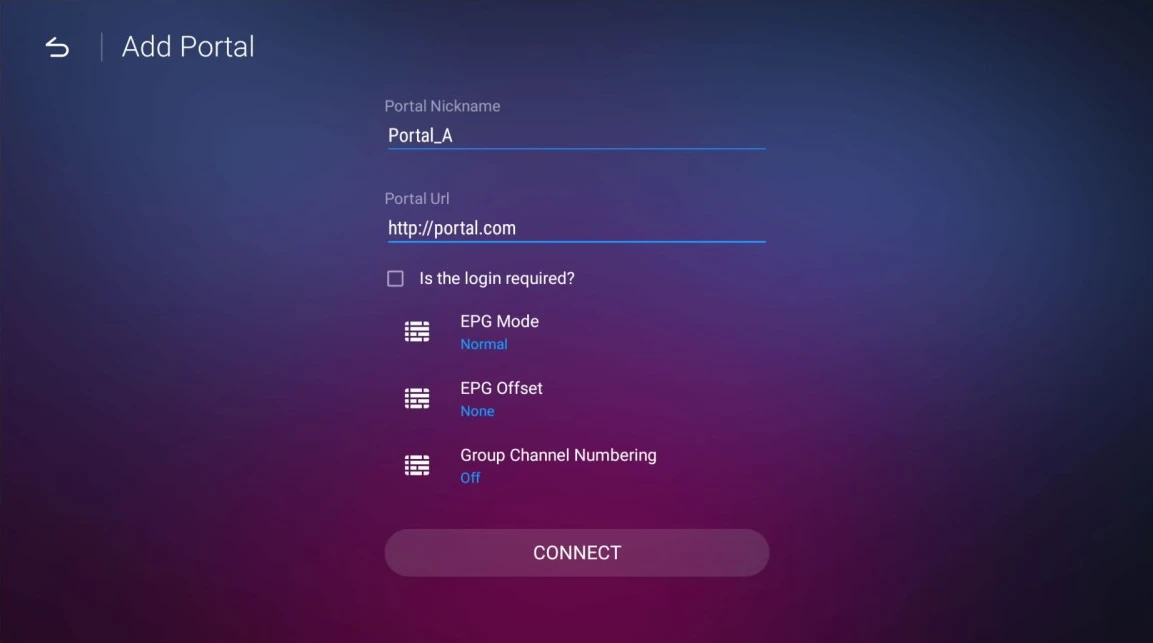
4. Enter Anything you want as the Portal Nickname in the first box. Then in the second paste the Portal URL provided by us after subscribing and Click on “CONNECT”.

Congratulations! You’ve now completed the setup of MYTV Online 3 for seamless streaming.
MYTV Online 2
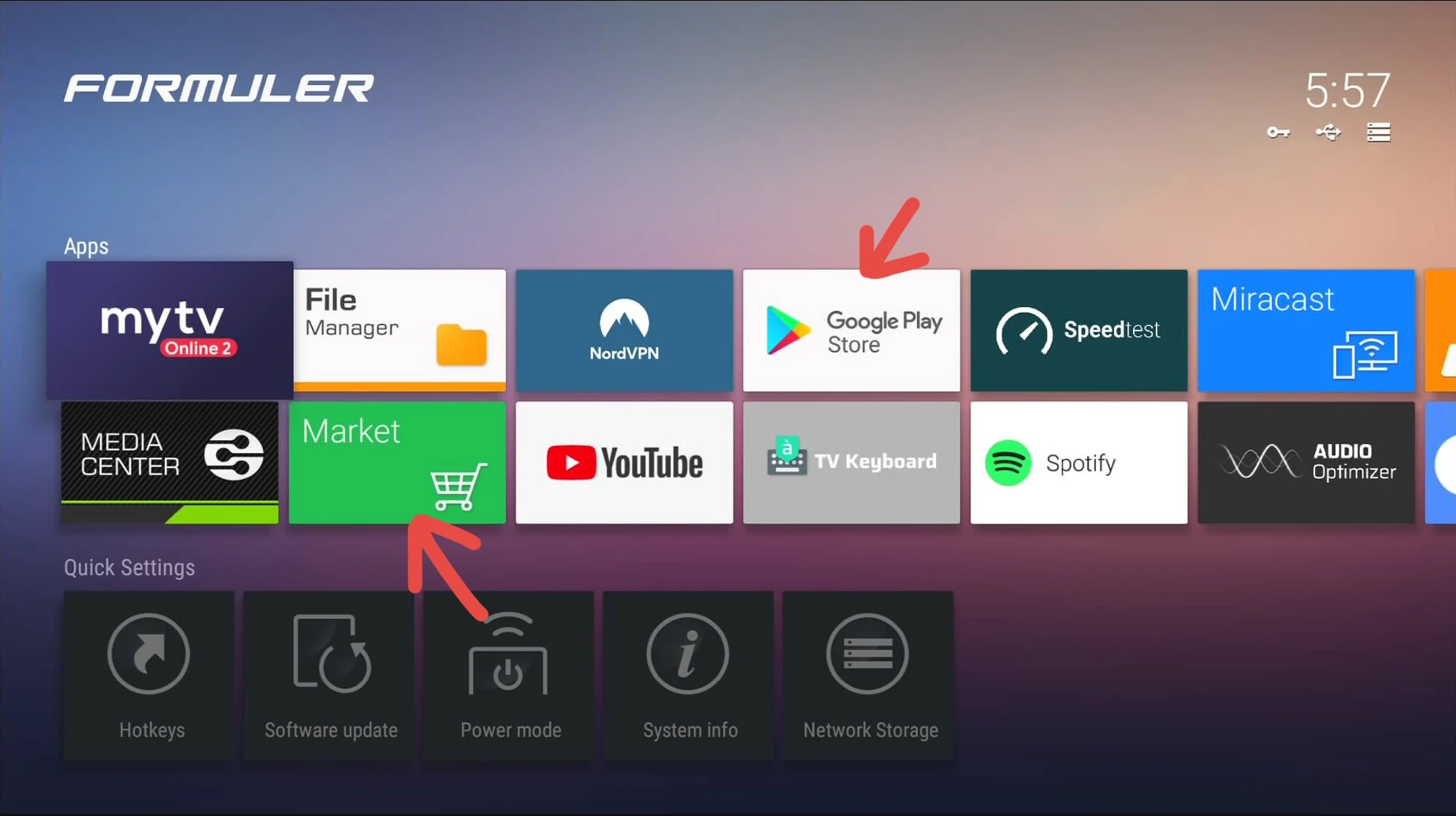
1- If you don’t have this application on your device you can download it from the Market Store or from the Google Play store.

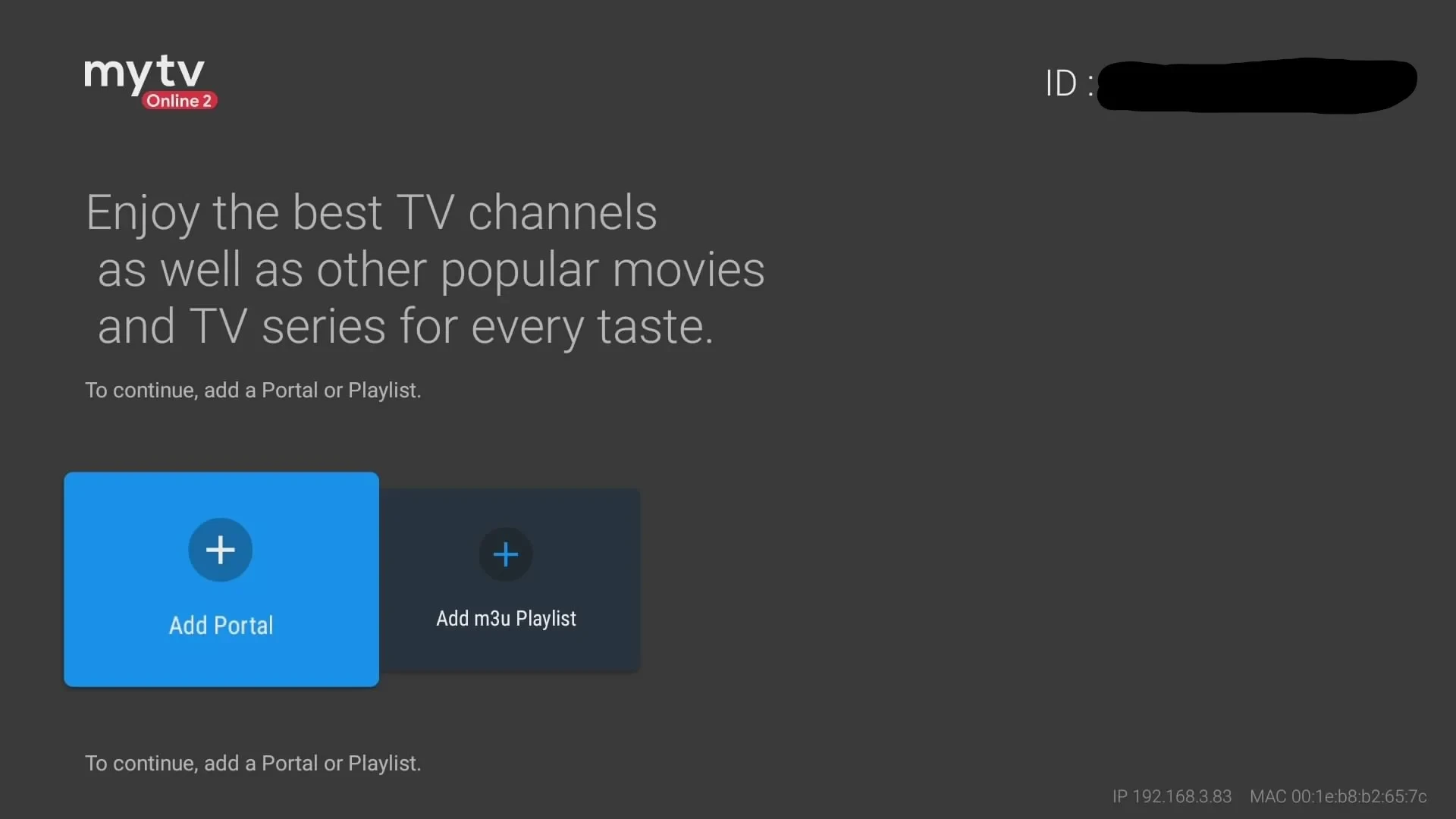
2. Open MYTV Online 2 and Go to Menu > Connections
3. Select “Add Portal”(Highly recommended) to set device as a MAC base device like MAG boxes.
** Locate the MAC ID of your box at the top right of this page. After payment if already mad the payment contact us via WhatsApp , submit the form with your device’s MAC Replace the 00:1E:B8:XX:XX:XX from the MAC Address (you can find it at the bottom of your box) with 00:1A:79:XX:XX:XX to obtain the MAC ID. This step is essential for activating your Service subscription.

4. Enter Any name you like as the Portal Nickname in the first box. Then in the second paste the Portal URL provided by us after subscribing and Click on “CONNECT”.

Congratulations! You’ve now completed the setup of the MYTV Online 2 app for seamless streaming.
To run the LiveStreamingTV IPTV service on your Roku, simply download ibo Player Pro App from your Roku Channel Store or Caste from your Smartphone to your TV.
Set up your Roku with ibo Player Pro App:

Go to the Roku Channel Store. Search for “IBO Player Pro.” Select “Add Channel” to install it.

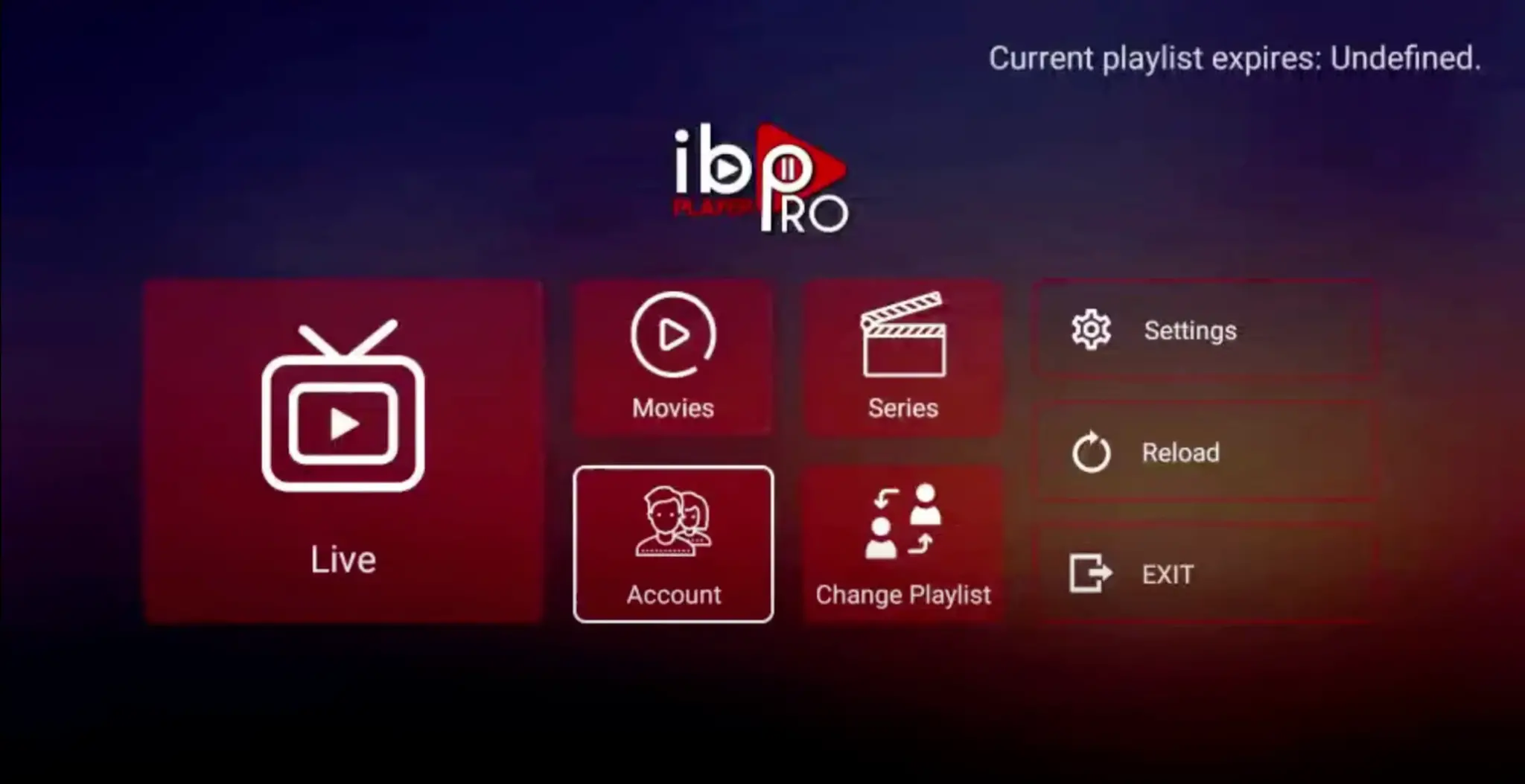
1. Open the App and Click on “Account” to see an activation screen displaying a unique activation code (MAC Address and Device Key).

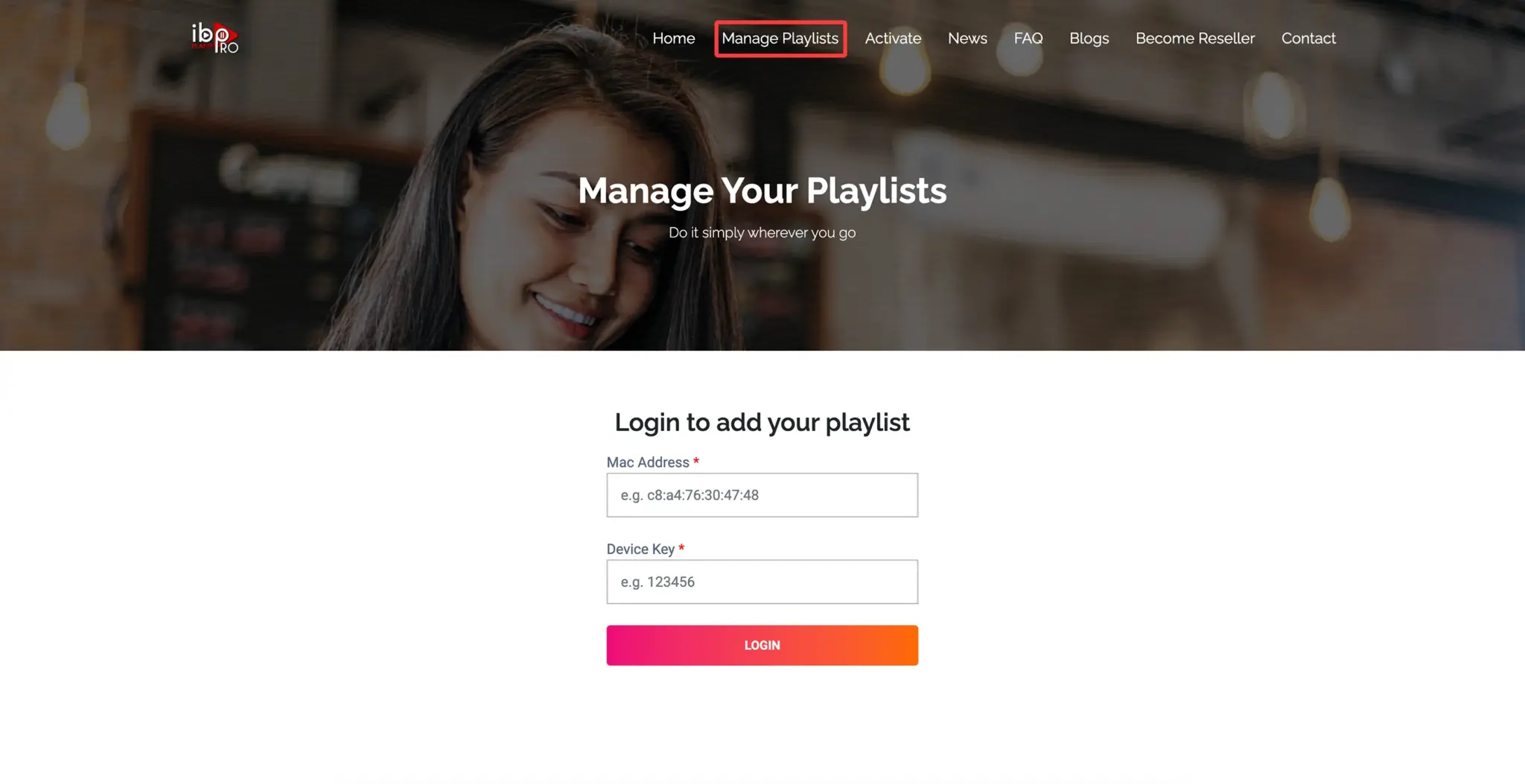
2. Visit page https://iboproapp.com/ via your mobile device web browser or your computer (or scan QR displayed on your TV screen) and Click “Manage Playlists” in Menu section. Then Enter the MAC Address and Device Key displayed on your Roku screen and Click “Login“.

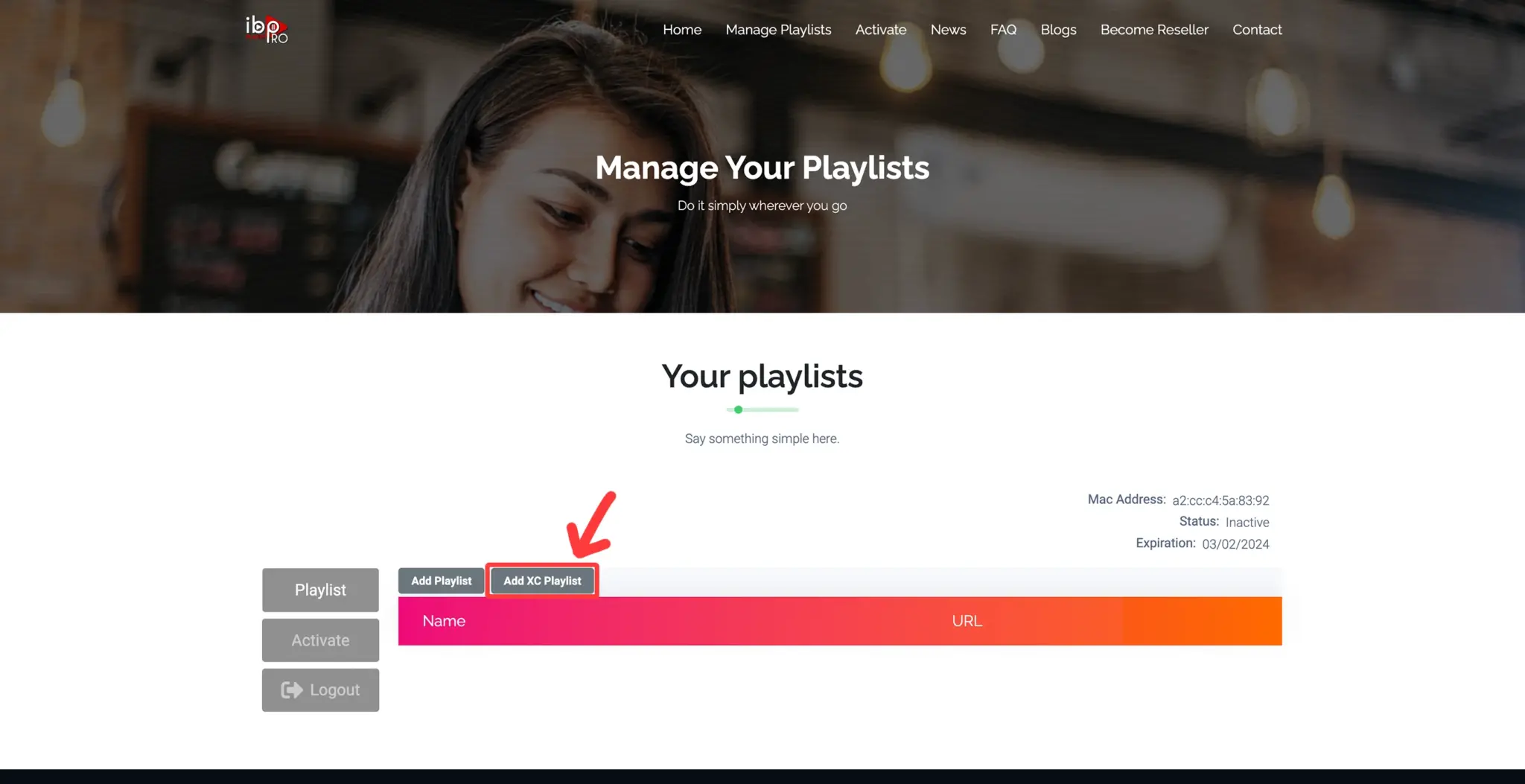
3. Click “Add XC Playlist” (recommended way).

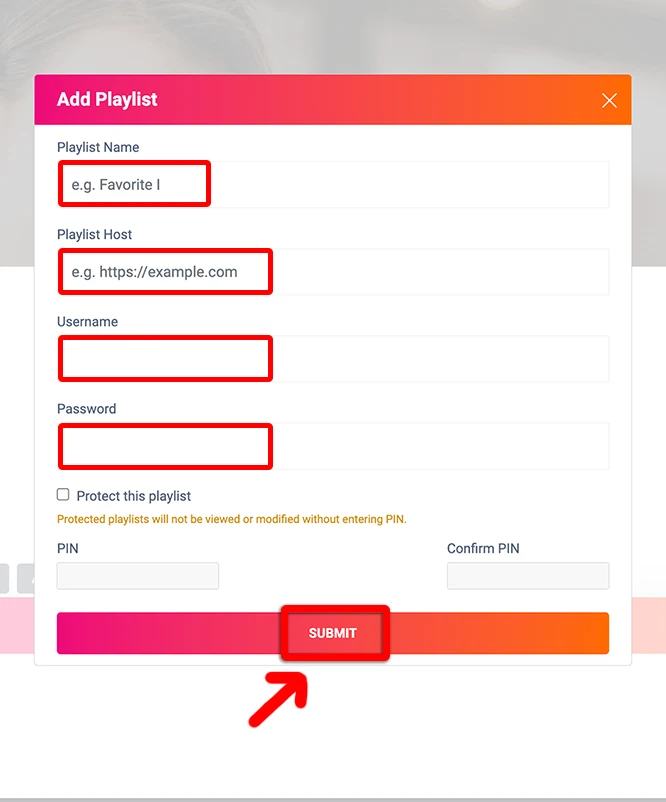
4. Enter “Global IPTV Pro” as the Playlist Name in the first box. Then in the second, third, and fourth boxes, input the Xtream Codes login credentials (Server address (Playlist Host), Username, and Password) provided by us after subscribing. Finally, click “Submit” to proceed.

5. After activation, return to your Roku device and check if IBO Player Pro is now unlocked and ready to use. You may need to restart the app for the changes to take effect.
NOTE: The app has a 7-day trial period; when it expires, go to https://iboproapp.com/manage-playlists/ , Log in with the Device ID and Key from your App and pay the one time fee.
Congratulations! You’ve now completed the setup of the ibo Player Pro app for seamless streaming.
Follow the steps below to get IPTV Smarters Pro on your Windows devices.

1. Click on this link in order to install IPTV smarters Pro App.

There are two ways to do this. Either using the Xtream Codes API (Username, Password, server Address) or using the M3u playlist. For a smoother setup experience, we recommend setting up via Xtream Codes API as it offers an integrated EPG system to enhance your streaming experience.
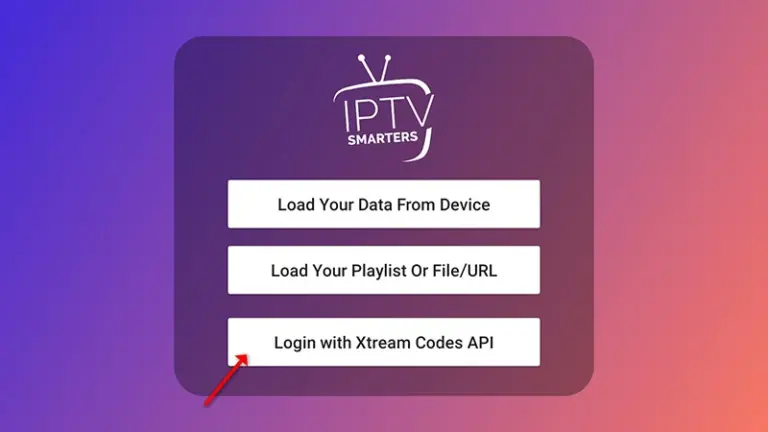
2. Open the app once downloaded and click on “Add user” then click on “Login with Xtream Codes API“.

3. Enter the Name (any name you want) in the first box. Then in the second, third, and fourth boxes, input the Xtream Codes login credentials (Username, Password and Server address(URL)) provided by us after subscribing. Finally click on “ADD USER“.
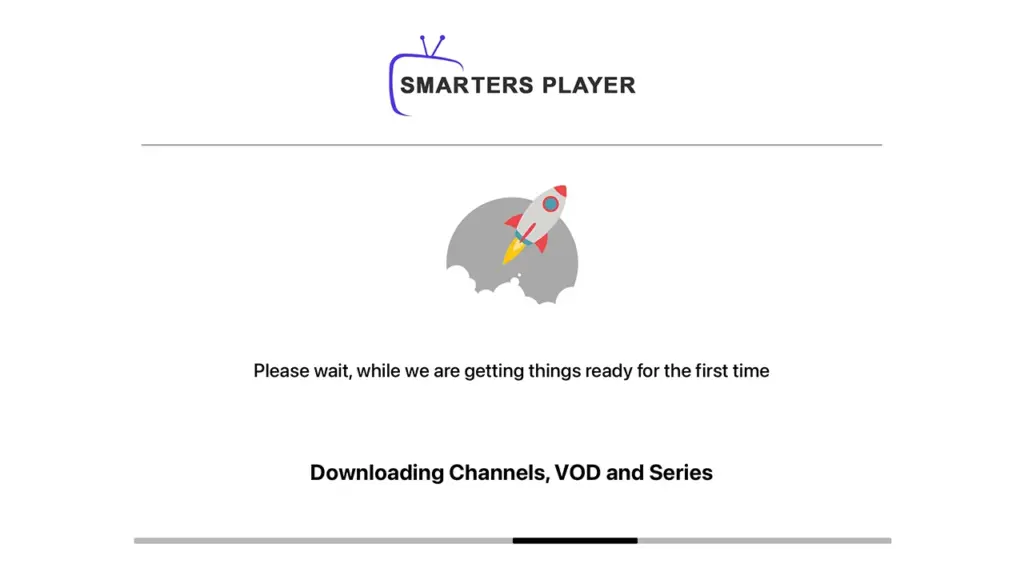
4. Wait some seconds.

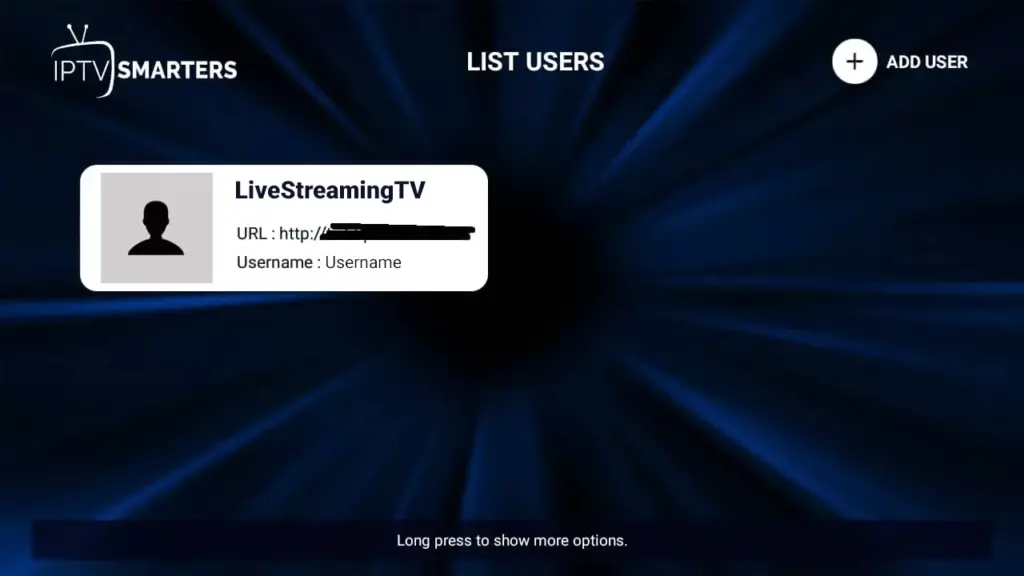
5. Once logged in, access the user list screen and select your newly created profile, as demonstrated in the accompanying images.

Congratulations! You’ve now completed the setup of the IPTV Smarters Pro app for seamless streaming.
To begin using the LiveStreamingTV IPTV service on your BuzzTV Box, Follow the steps below for easy setup.
Set up your BuzzTV box with The portal URL (Highly recommended):
In Some buzzTV Models
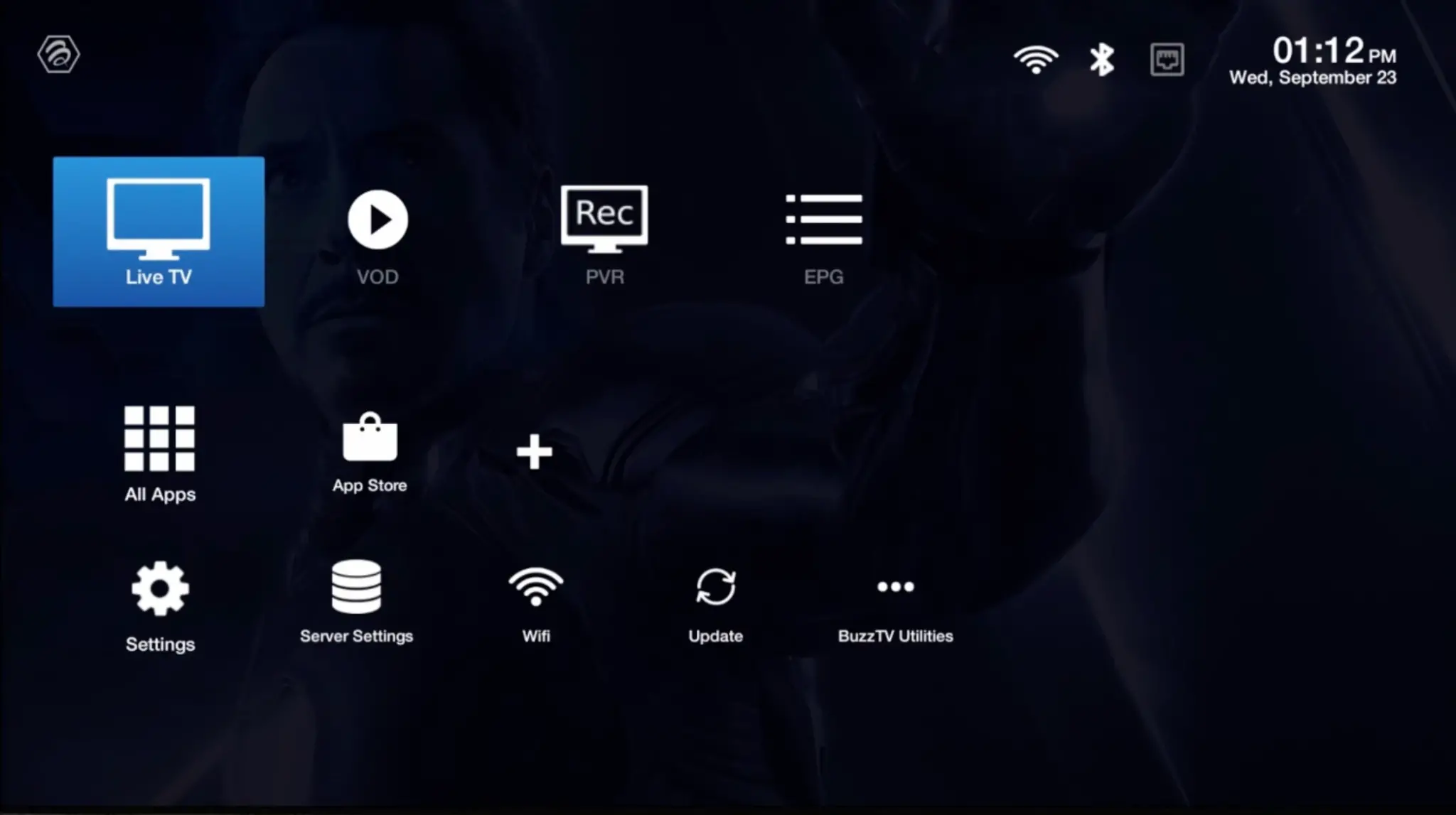
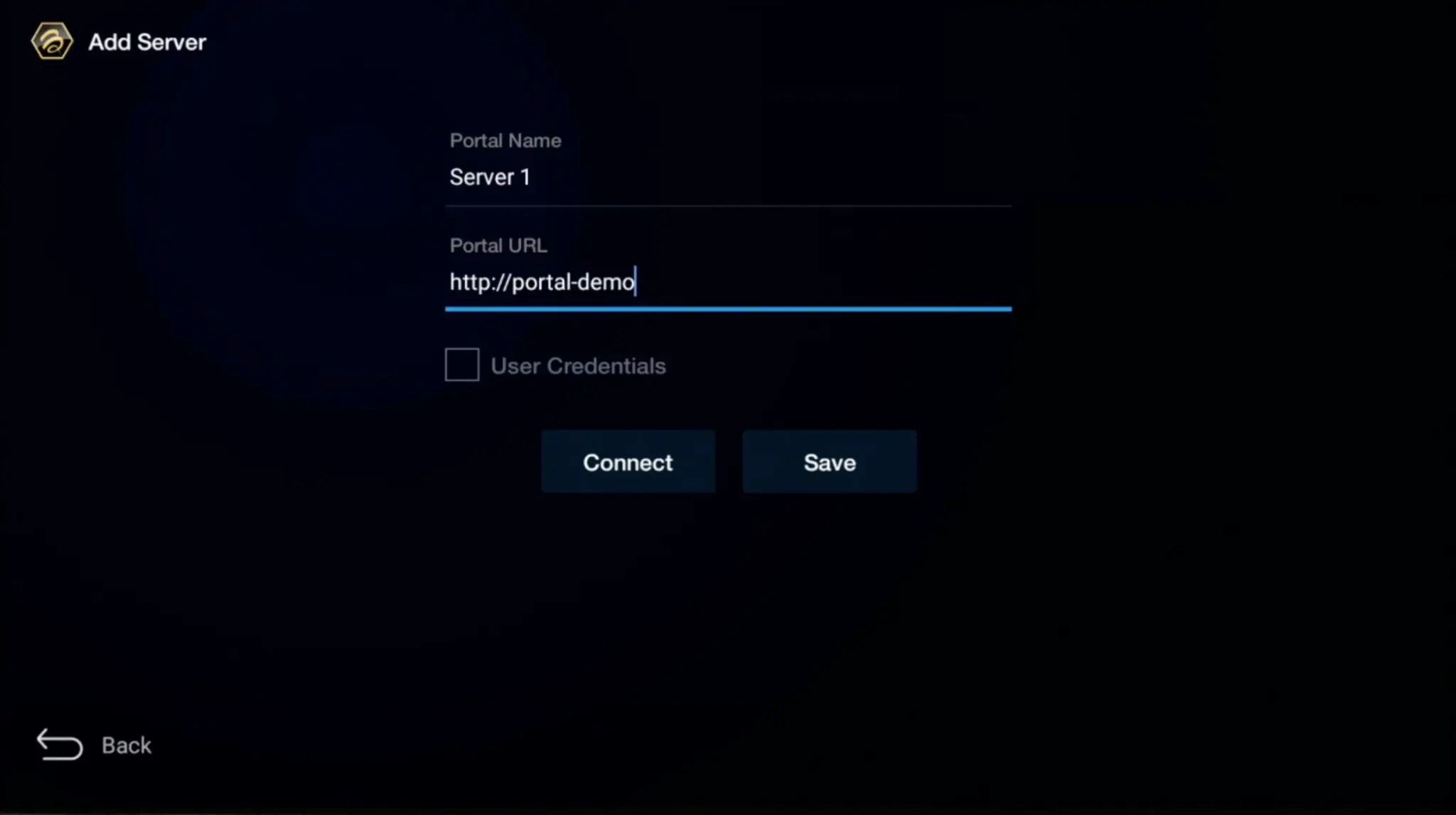
1. Go to Live TV section.

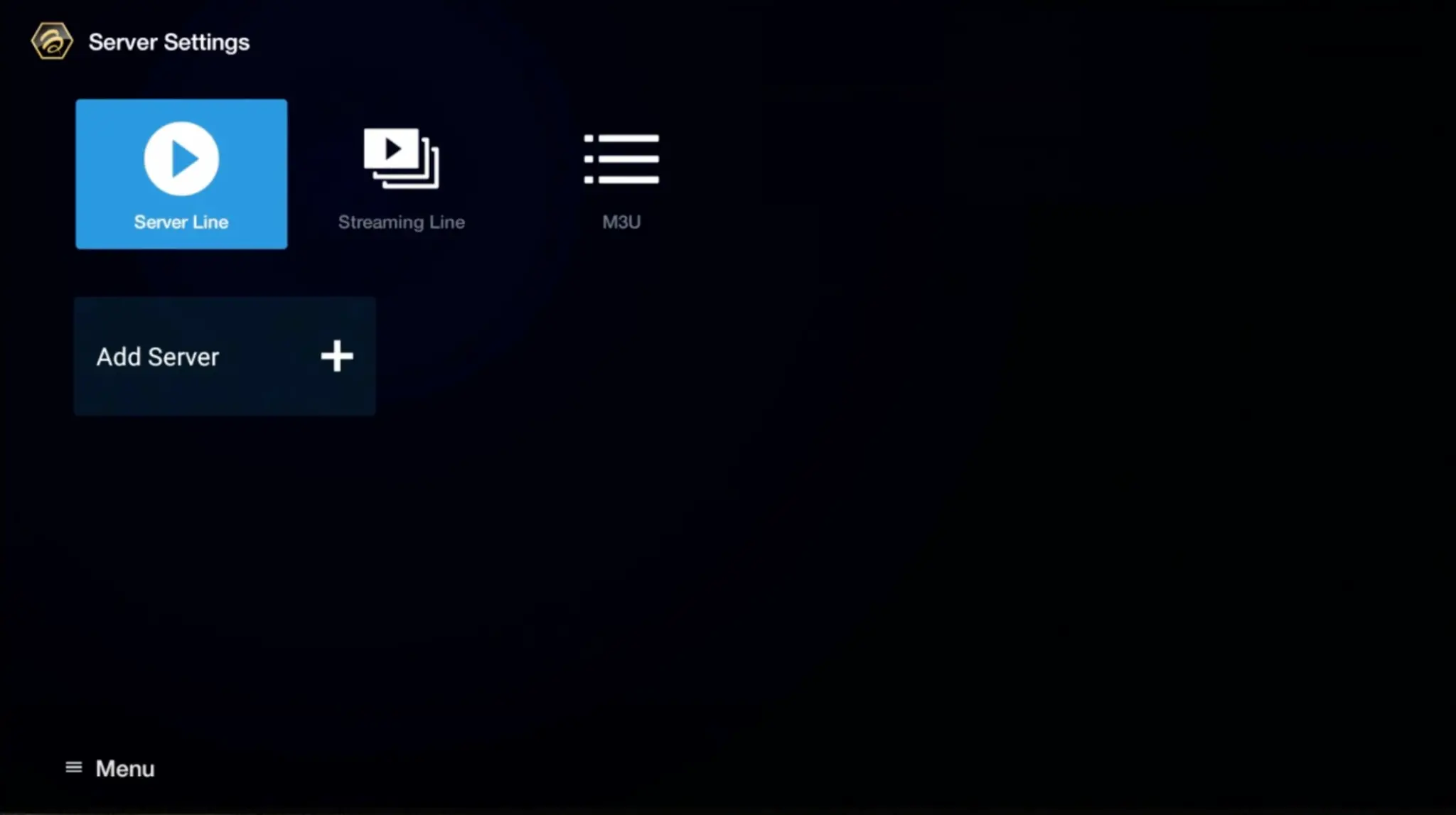
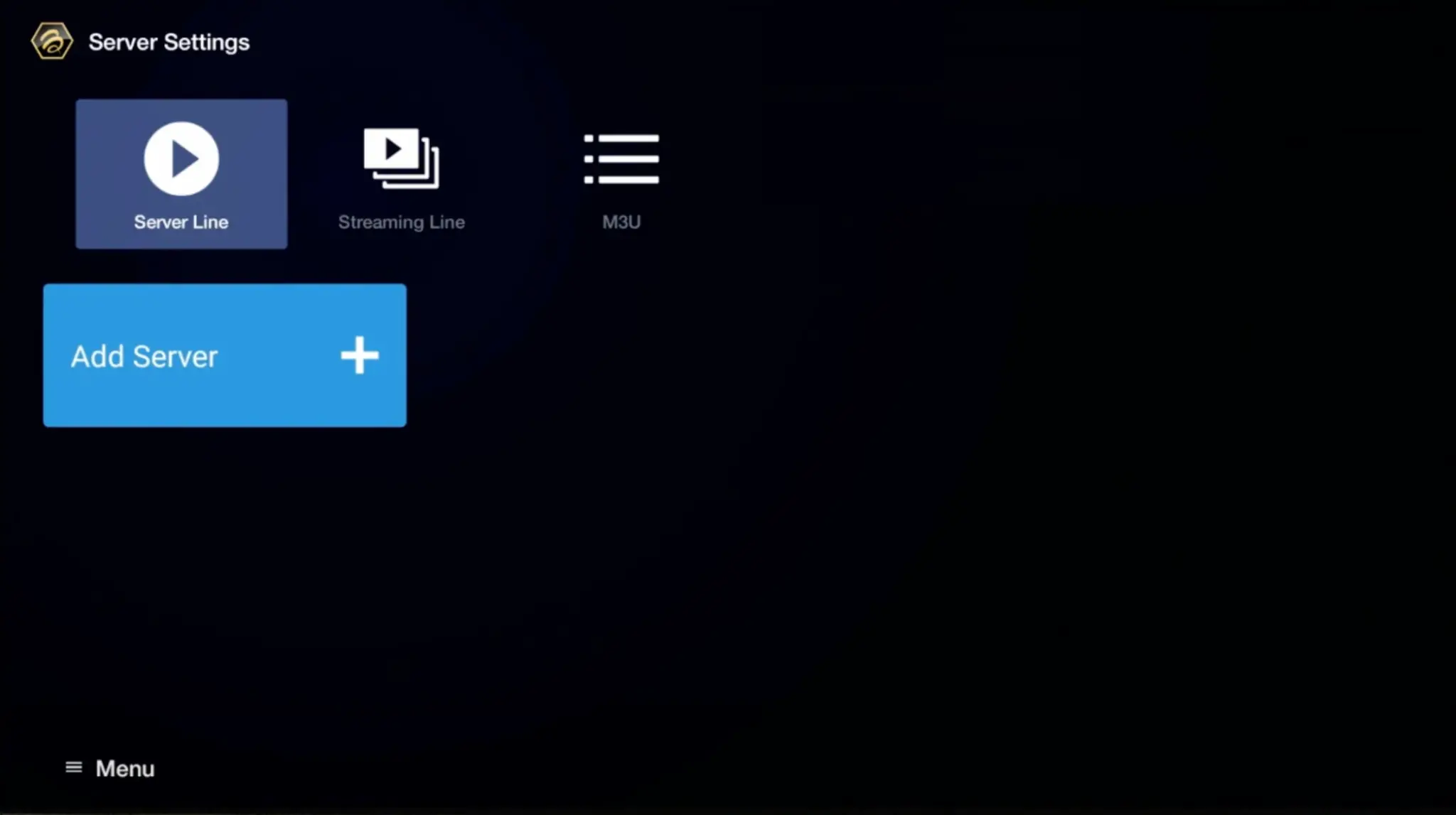
2. Select “Server Line” or “MAC Server“.

3. Click on “Add Server” or “Add MAC Server“.

4. Enter “LiveStreamingTV” as the Portal Name in the first box. Then in the second the Portal URL provided by us after subscribing and Click on “CONNECT”.

**Please note, After payment, submit the Form with your device’s MAC address (you can find it at the bottom of your box. Look for a label that says “MAC” or “MAC Address”). This step is essential for activating your LiveStreamingTV IPTV Service subscription.
Congratulations! You’ve now completed the setup of your BuzzTV Box for seamless streaming.
In Other buzzTV Models
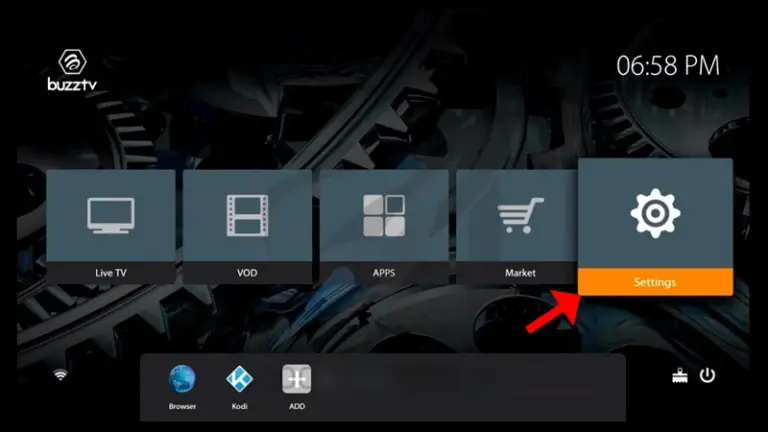
1. On the main menu, click on “Settings”.

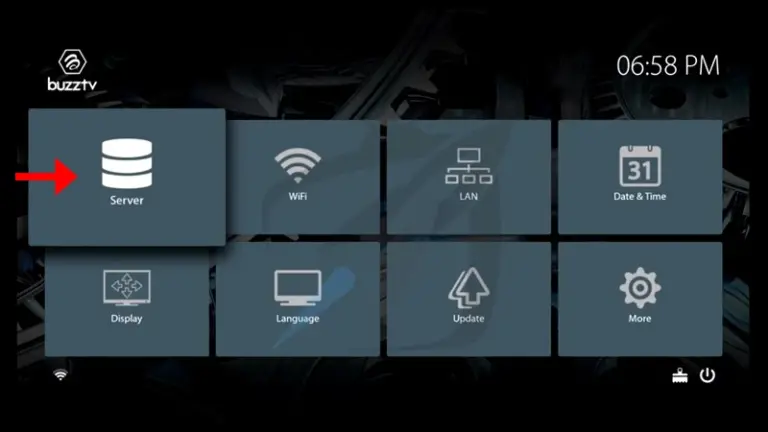
2. Then click on “Servers” and proceed to the next step.

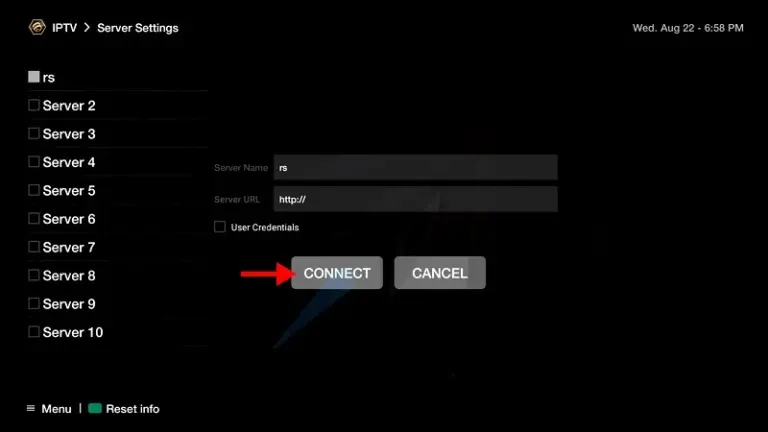
3. Enter “LiveStreamingTV” as the Server Name in the first box. Then in the second the Portal URL(server URL) provided by us after subscribing and Click on “CONNECT”.

**Please note, After payment, submit the Form with your device’s MAC address (you can find it at the bottom of your box. Look for a label that says “MAC” or “MAC Address”). This step is essential for activating your LiveStreamingTV IPTV Service subscription.

Congratulations! You’ve now completed the setup of your BuzzTV Box for seamless streaming.
IPTV Setup Guide for Android Devices
To begin using the LiveStreamingTV IPTV service on your Android device, simply follow the steps below:
1. First please open The Play Store or your Smart TV App store then search for one of the apps below.
2. Here are the top recommended apps for Android :

IBO Pro Player (Paid)
The Ibo Pro Player is a streamlined IPTV app for streaming live TV, movies, and on-demand. It offers a 7-day free trial period before asking for a One-Time payment.
IPTV Smarters PRO(Free)
IPTV Smarters PRO is a free IPTV app to watch live TV, Movies & Series (available in app store).
3. After downloading one of the mentioned apps, simply follow the easy steps outlined within the application to start enjoying your favorite content. Relax and immerse yourself in a seamless viewing experience.
Feel free to download any IPTV app of your choice. Our service is compatible with all apps and devices. The apps mentioned earlier are a recommended option.
To begin using our IPTV service on your MAG box, simply follow the steps below.
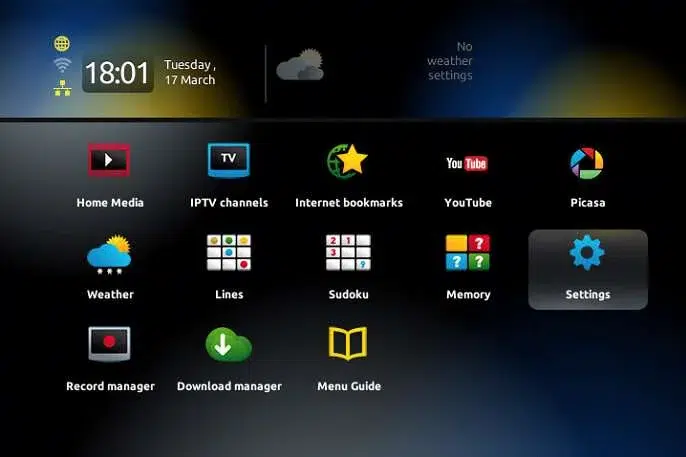
If you didn’t provide the mac adress on the checkout page then you need to contact use via email (contact_us@iptvlegacy.com) or WhatsApp
1. When the box is being loaded the main portal screen appears. After that, Click on “SETTINGS“, Press remote button “SETUP/SET“.

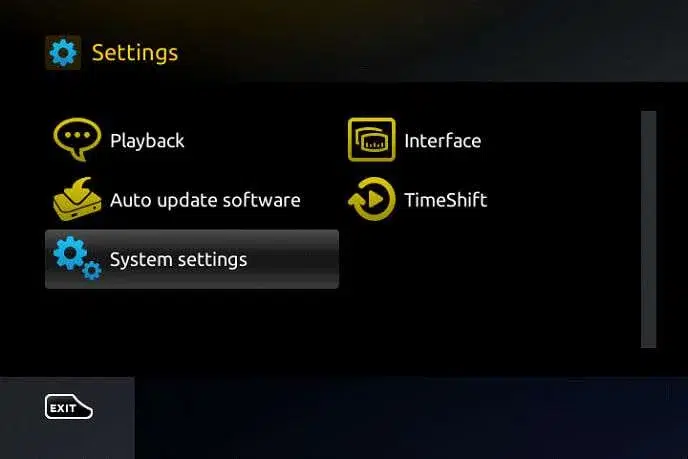
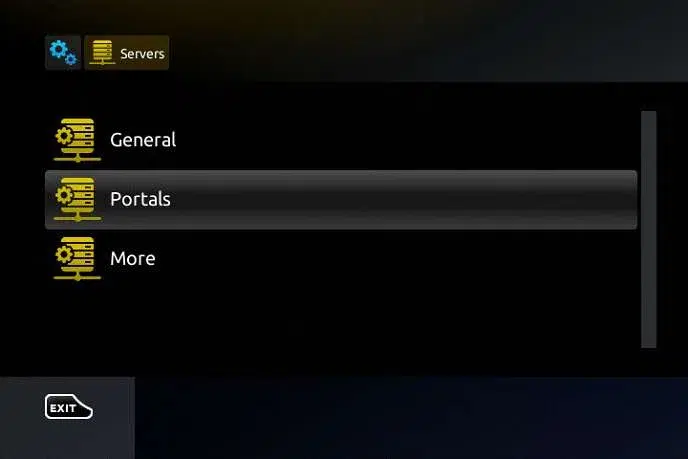
2. Then, Click on “System settings” and click on “Servers“.

3. Select “Portals“

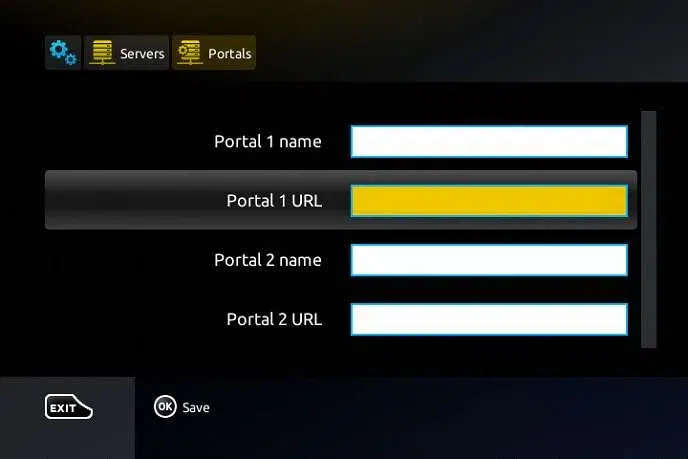
4. In the “Portal 1 Name” section, enter any name you want In the “Portal 1 URL” section, enter the Portal URL provided by us after subscribing.
You must send us the Mac address of your device, you can find it at the bottom of your box.

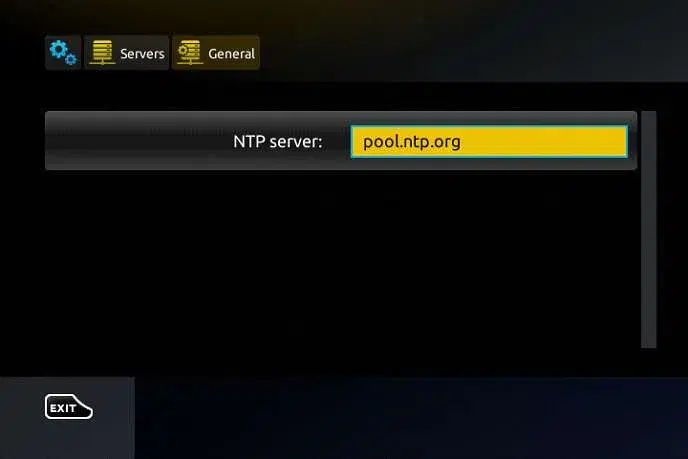
5. When all the operations listed above is done, then press “OK“. When the settings are being saved, then click on “EXIT” on the remote control and click on option “General“. In the “NTP server” line, enter the following address: pool.ntp.org or us.pool.ntp.org for North America, and Click on “OK“

6. Once you’ve completed all the preceding steps, click on “EXIT” twice with your remote control. Afterward, select “Restart portal” to finalize the setup process.
Congratulations! You’ve now completed the setup of your MAG Box for seamless streaming.
IPTV Setup Guide for IOS and Apple TV
1. Begin by opening the App Store, then search for one of the apps listed below.
2. Here are the top recommended apps for lOS:

IBO Pro Player (Paid)
The Ibo Pro Player is a streamlined IPTV app for streaming live TV, movies, and on-demand. It offers a 7-day free trial period before asking for a One-Time payment.
IPTV Smarters Lite (Free)
IPTV Smarters Lite is a free IPTV app to watch live TV, Movies & Series (available in Apple TV).
Feel free to download any IPTV app of your choice. Our service is compatible with all apps and devices. The apps mentioned earlier are a recommended option.
3. After downloading one of the above app, Just open the app and choose XTREAM CODES API.
4. Then Put your Xtream Codes login credentials (Username, Password, and URL(Server address)) provided by us after subscribing. Get Your Subscription Here.
Congratulations! You’ve now completed the setup on your iOS device for seamless streaming.
IPTV Setup Guide for Smart TV (LG - SAMSUNG)
To begin using the LiveStreamingTV IPTV service on your LG or Samsung TV, simply follow the steps below:
1. First please open your App store then search for one of the apps below.
2. Here are the top recommended apps for your TV:

IBO Pro Player (Paid)
The Ibo Pro Player is a streamlined IPTV app for streaming live TV, movies, and on-demand. It offers a 7-day free trial period before asking for a One-Time payment.
IPTV Smarters PRO(Free)
IPTV Smarters PRO is a free IPTV app to watch live TV, Movies & Series (available in app store).
3. After downloading one of the mentioned apps, simply follow the easy steps outlined within the application to start enjoying your favorite content. Relax and immerse yourself in a seamless viewing experience.